

Every time you open a website and see a pop-up asking Allow this site to know your location? or Allow notifications?, you are being asked to make a privacy decision. Most people tap Allow quickly, just to get rid of the pop-up. But that one click can quietly give a website far more access to your device than you realise.
India is now one of the most targeted countries for online data breaches. Kaspersky detected nearly 10 million web-borne threats targeting users in India between January and March 2025, with 16.9% of Indian internet users encountering online threats during that period. A big part of that exposure begins with something as simple as browser permissions.
What Are Browser Permissions, Exactly?
When you visit a website using Chrome, Firefox, or any other browser, the website can ask your browser to share certain resources from your device. These requests are called browser permissions. The browser acts like a gatekeeper. It asks you whether you want to share that resource. If you say yes, the website gets access until you change that setting or clear it manually.
The most common permissions are location, camera, microphone, notifications, cookies, and file downloads. Each of these, if misused, can affect your privacy in different ways.
How Each Permission Can Put You at Risk
Location
Sharing your location with a maps app or food delivery service makes sense. But many websites ask for location access without a real need for it. Location data can be used to track your daily habits, monitor your movements, or target you with ads. In some cases, stored location history can even pose safety risks.
Think about this if you visit a price-comparison website and allow location access, that site now knows you are in, say, Pune. It may show you higher prices or share your city data with advertisers. You may never know this happened.
Camera and Microphone
These two are the most sensitive permissions. Granting camera access allows a site to view and record through your webcam, and microphone permissions work in a similar way. There have been real incidents where attackers gained webcam access through malicious sites and used the footage for extortion.
You may have allowed camera access to a website months ago for a video call and then forgotten about it. If that site is compromised later, the permission you gave could be misused.
Notifications
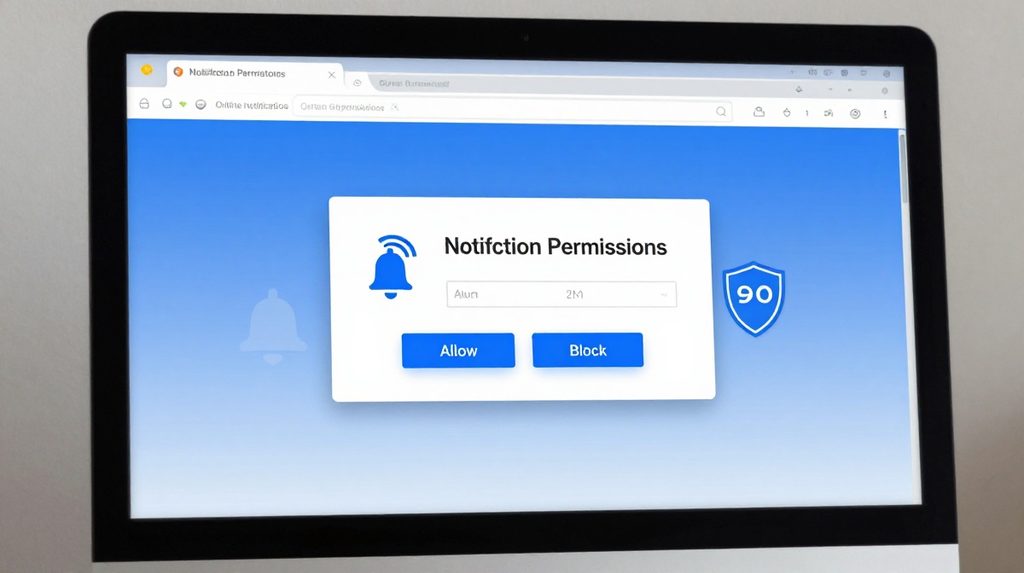
Browser notifications are the pop-up alerts that appear on your screen even when a website is not open. Scam sites misuse this all the time. Scam sites use notifications to deliver fake virus warnings or fraudulent offers, trying to lure you into clicking malicious links. Many Indians who see Your phone is infected, click here alerts are seeing abused browser notification permissions, not actual virus alerts.
Cookies
Cookies are small pieces of data that a website saves on your browser. They remember your login, your cart items, and your preferences. That sounds useful, but cookies are also the primary tool for tracking your browsing behaviour across websites. Cookies are used to track user preferences, authenticate users, and target advertising.
Third-party cookies, in particular, follow you from one website to another. An ad company can know that you visited a cricket gear website, then a health supplement website, and then a financial planning site, all in one afternoon.
A Common Misconception: Private Mode Does Not Clear Permissions
Many people in India use Chrome’s incognito mode thinking it gives full privacy. It does hide your browsing history from your device. But if you have always allowed a site to share your location, that site retains the permission even in private browsing mode. Chrome, by default, treats an Allow as permanent unless you manually go and change it. So your incognito session is not as private as you might think.
The Bigger Picture: Why This Matters for Indian Users
In the first quarter of 2024, India experienced 17.1 million online account breaches, equating to 132 accounts compromised per minute, according to cybersecurity firm Surfshark. India ranks sixth in the world for the number of breached users.
India’s Digital Personal Data Protection Act DPDP Act, passed in August 2023, aims to protect Indian users’ data privacy, but researchers at IIT Gandhinagar have noted that privacy considerations have often been ignored in website design, particularly around browser-based storage mechanisms.
The DPDP Act requires companies to get your clear consent before collecting your data and to report breaches within 72 hours. But that protection only works if you are also careful at your end. Blindly clicking Allow on every browser prompt defeats the purpose of any law.
If you use online platforms for fantasy sports or other browser-based games, your location and notification permissions are especially worth reviewing. For example, when accessing services like lotus365 online, it’s a good habit to check which browser permissions the site requests and only grant what is genuinely needed for the service to work.
How to Review and Fix Browser Permissions Right Now
This is where most articles stop at theory. Let’s get practical.
On Chrome (Android, which most Indians use)
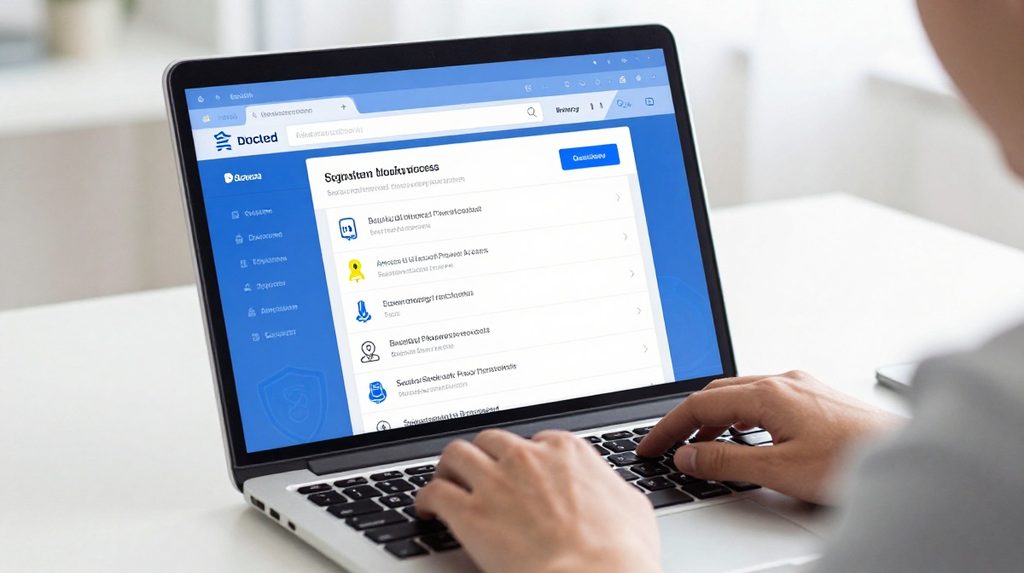
Open Chrome, tap the three dots at the top right, go to Settings, then Site settings. You will see a list of permissions including Location, Camera, Microphone, and Notifications. Tap any one to see which websites have been granted access, and remove the ones you don’t recognise or no longer use.
On Chrome (Desktop/Laptop)
Go to chrome://settings/privacy and click on Site settings. Under the Permissions section, you can review and revoke access for each category.
On Firefox (Desktop)
Type about:permissions into the address bar and press Enter. You’ll see a full list of every site that has any permission, all in one place. This is one of Firefox’s more useful privacy tools.
The general rule is simple. Grant permissions only when you are actively using a feature that requires them, and revoke them when you are done. If a website asks for your microphone but you’re only reading an article, deny it.
Safe Habits to Build Going Forward
| Permission | Low-risk approach |
|---|---|
| Location | Allow only while using the feature; deny for news or shopping sites |
| Camera | Allow for video calls only; revoke after the session |
| Microphone | Same as camera; deny for sites that don’t need it |
| Notifications | Deny by default; allow only from apps you trust |
| Cookies | Block third-party cookies in browser settings |
If you download apps like the lotus365 apk or any app outside the official app stores, be extra careful about the permissions it requests during installation. Apps from unofficial sources sometimes ask for far more access than they need.
Only install browser extensions from official stores like the Chrome Web Store. Extensions can enhance browser functionality, but they themselves can pose privacy risks if not chosen carefully.
For more official guidance on data rights under Indian law, you can refer to the Ministry of Electronics and Information Technology MeitY page on personal data protection.